Portal Support
Get your Mac on your iPad in about a minute.
Watch the setup, follow four steps, and you're in. If something isn't working, find what you're seeing below.
Set up
Four steps, once per Mac.
You need an iPad, iPhone or iPhone Duo (iPadOS or iOS 17 or later) and a Mac with macOS 14 or later, on the same Wi-Fi.
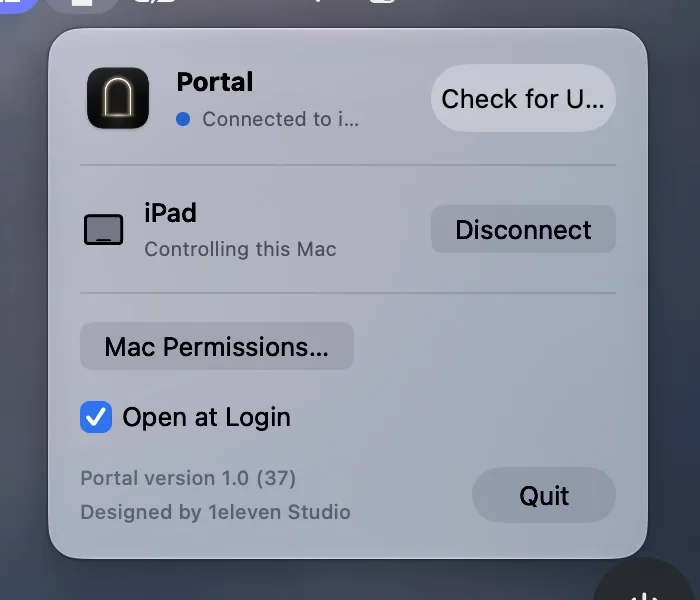
Put Portal on your Mac
Download Portal for Mac, drag it to Applications and open it. Its arch appears in the menu bar.
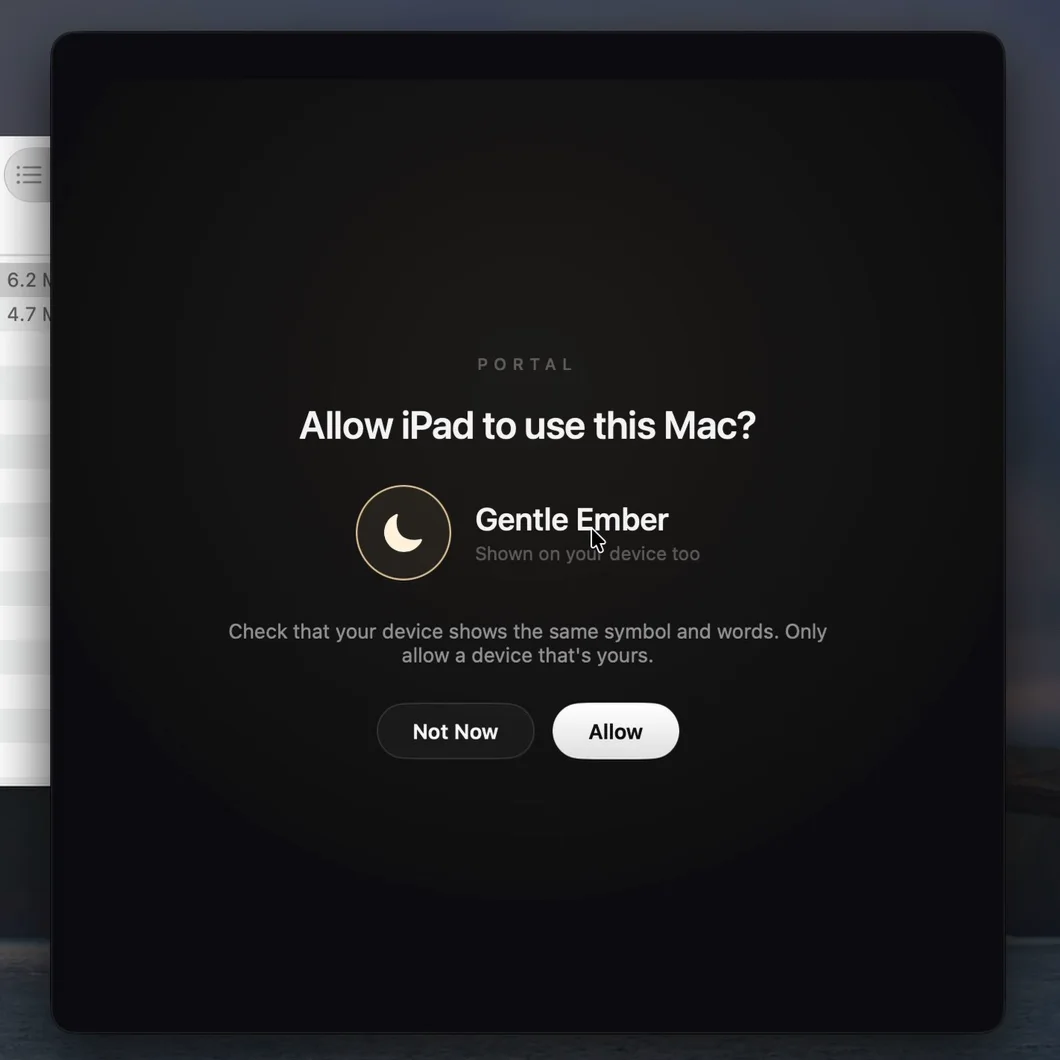
Check the symbols, click Allow
Pick your Mac in Portal. When the Mac shows the same symbol and words, click Allow.
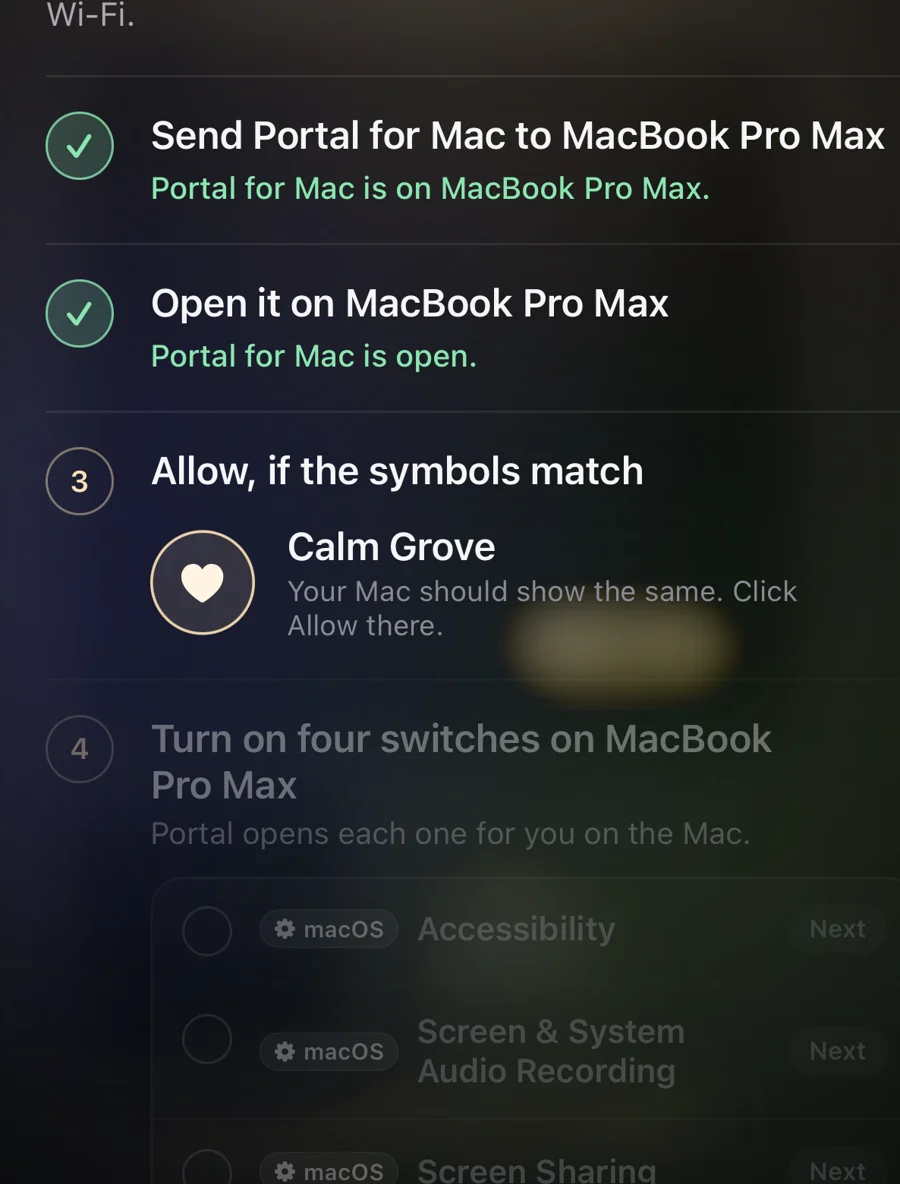
Turn on four switches
Portal opens each page in System Settings for you. Each one ticks green.
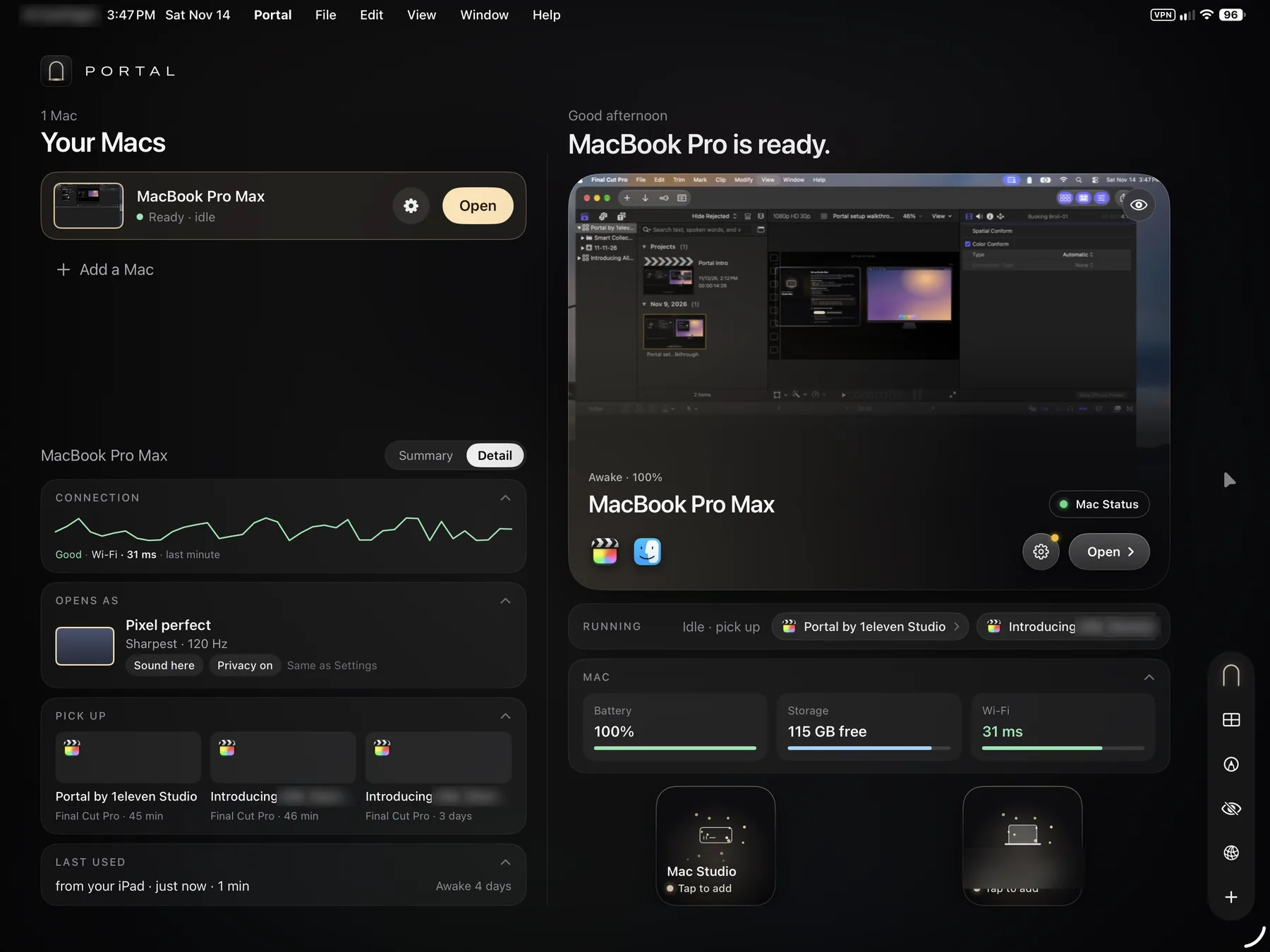
Tap Open
That's your Mac. Next time it's one tap.
Find your way around
Everything lives in the pill.
The glass bar on the edge of the screen. Drag it anywhere, or hide and show it with a three-finger tap. From the top:
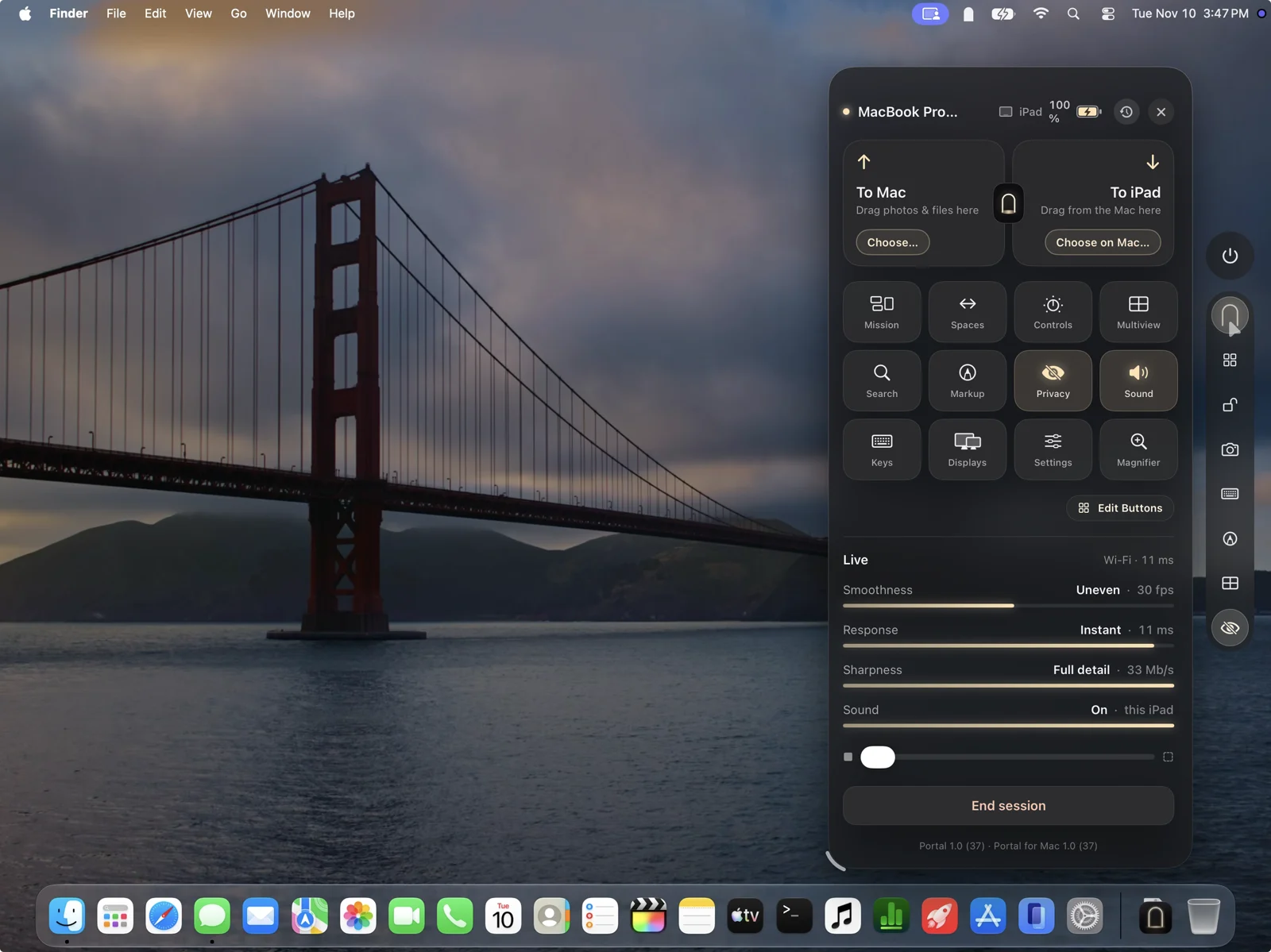
- 1End sessionDisconnect from this Mac
- 2Portal menu, the archFiles both ways, tools, live readings and settings
- 3AppsYour Mac's apps, and keys for the one in front
- 4Pointer or touchA trackpad-style pointer, or tap right on the screen
- 5Markup, keyboard and moreChoose and arrange them in Customize
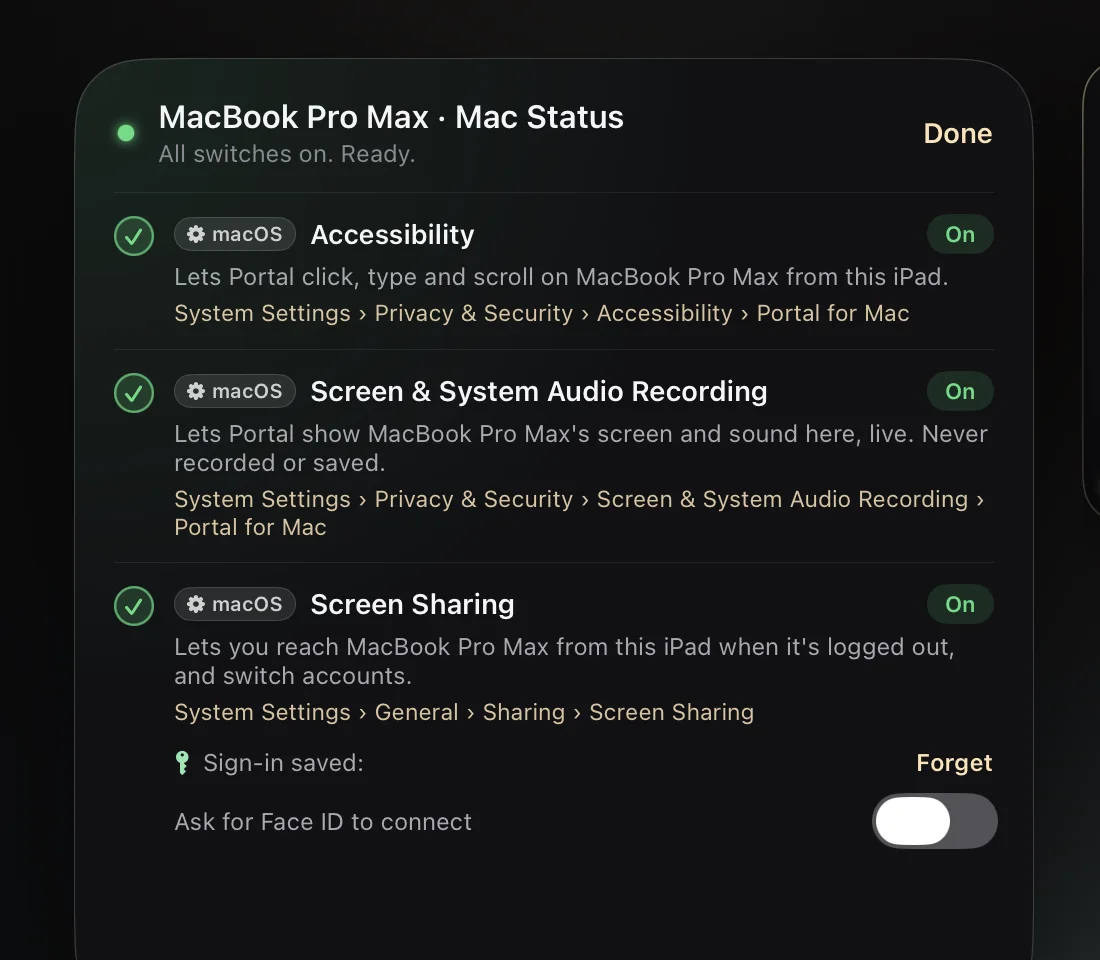
Mac Status
Every switch at a glance, and what each one is for.
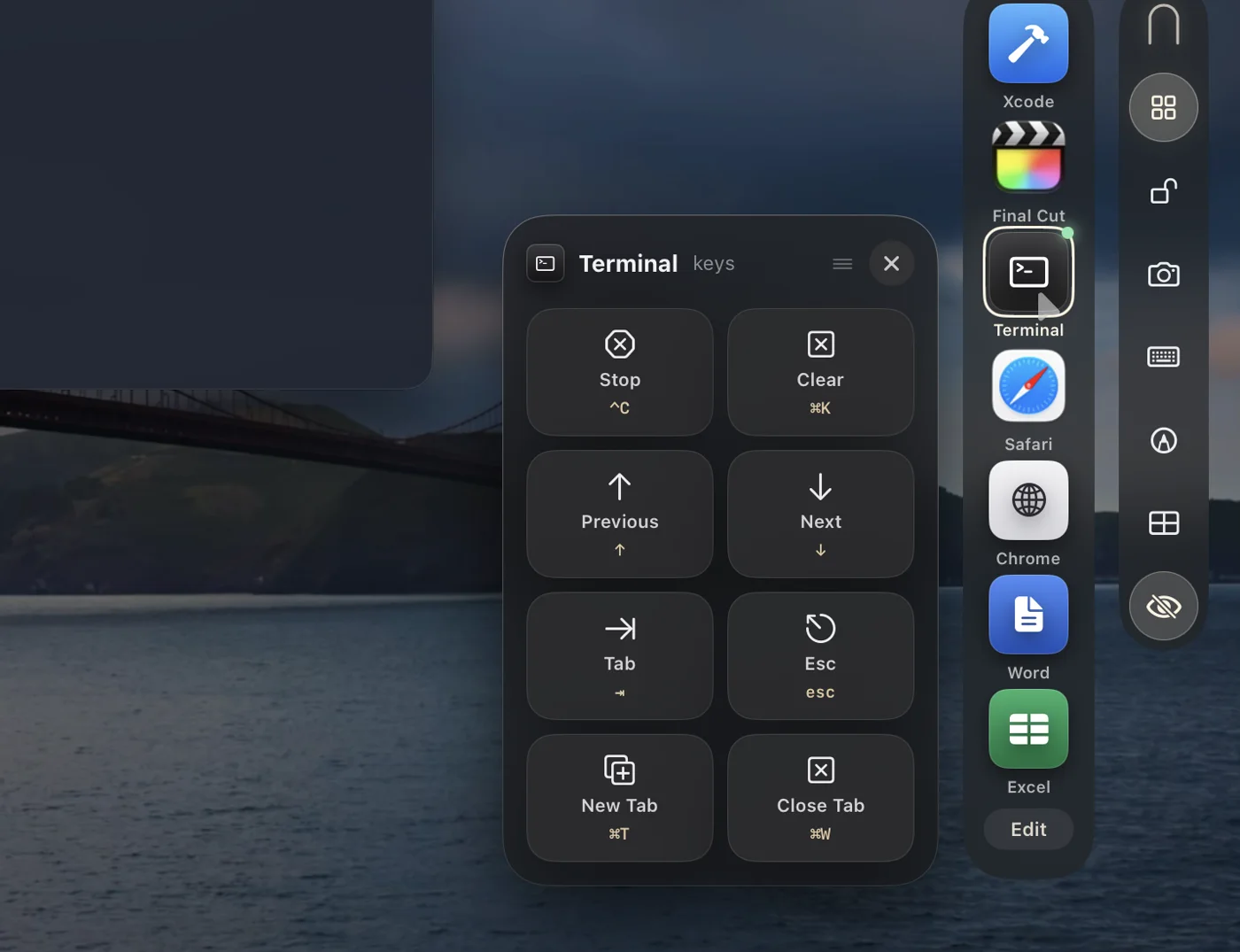
App keys
Each app's shortcuts as buttons. Snap them to the bottom like a bar.
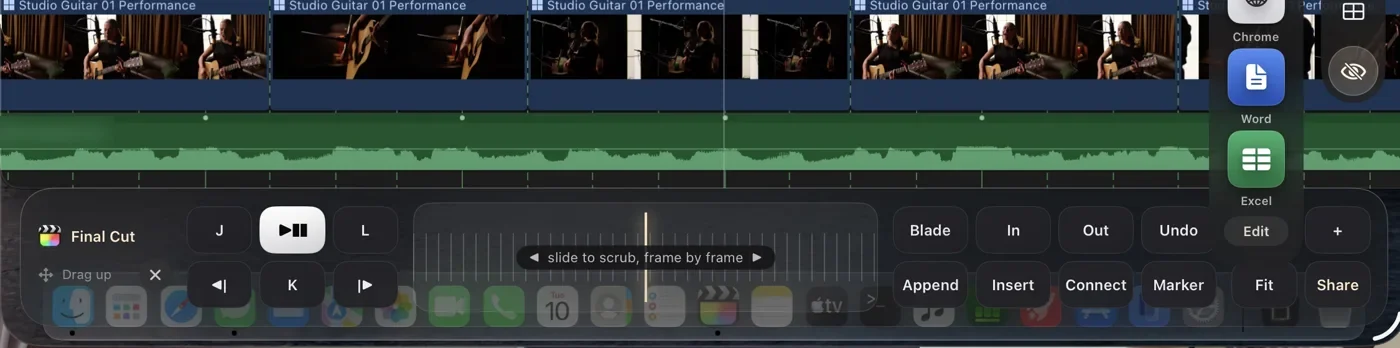
Final Cut Pro controls
J, K, L, Blade and a scrub strip under your thumb.
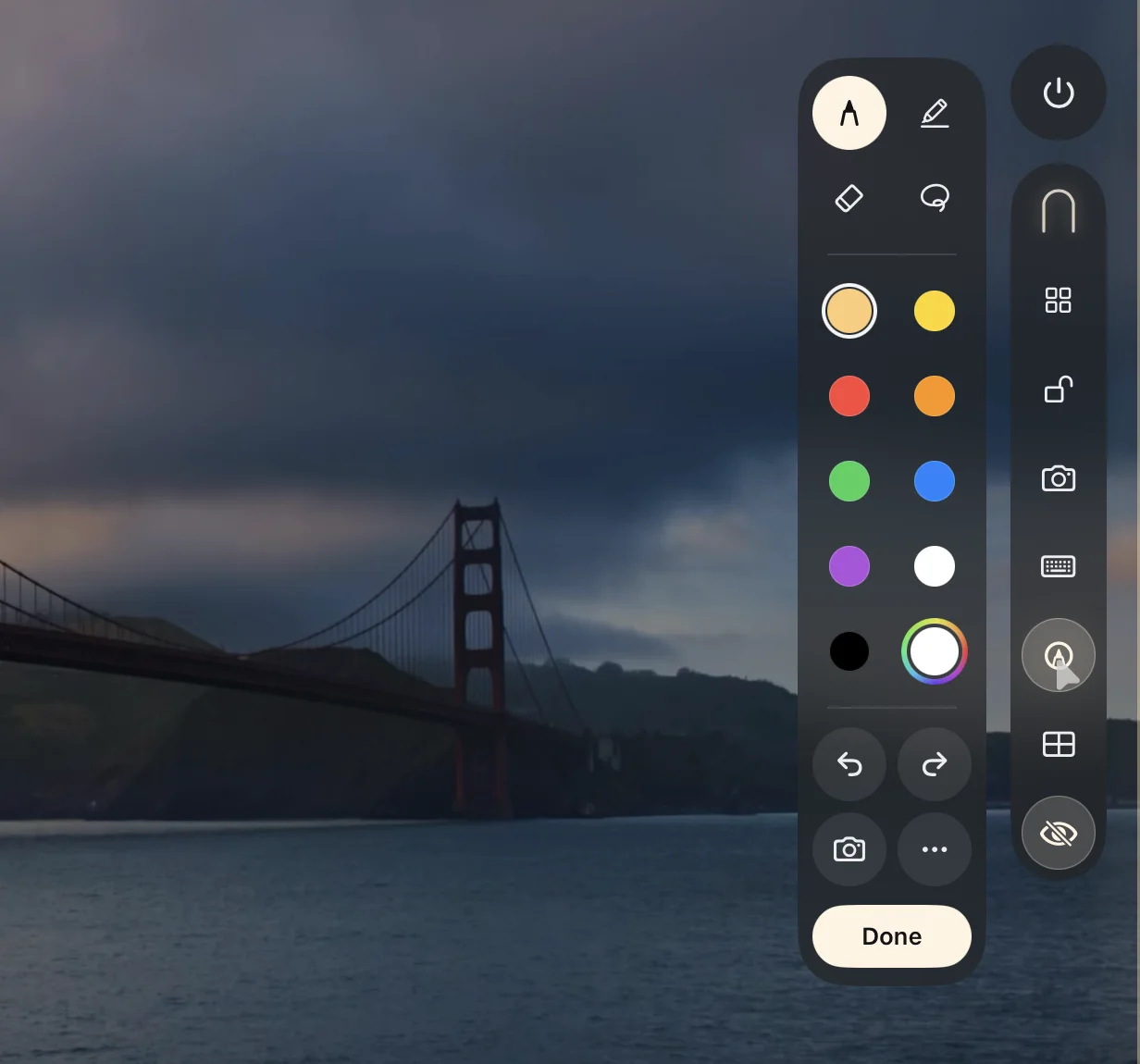
Markup
Draw on your Mac's screen, then save it.
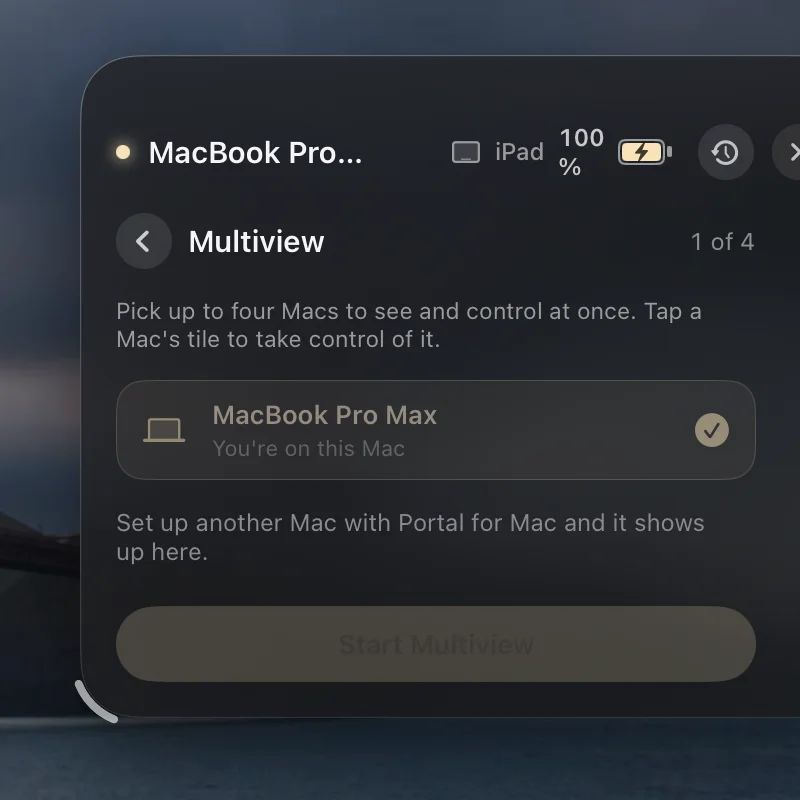
Multiview
Up to four Macs at once. Tap a tile to take control.
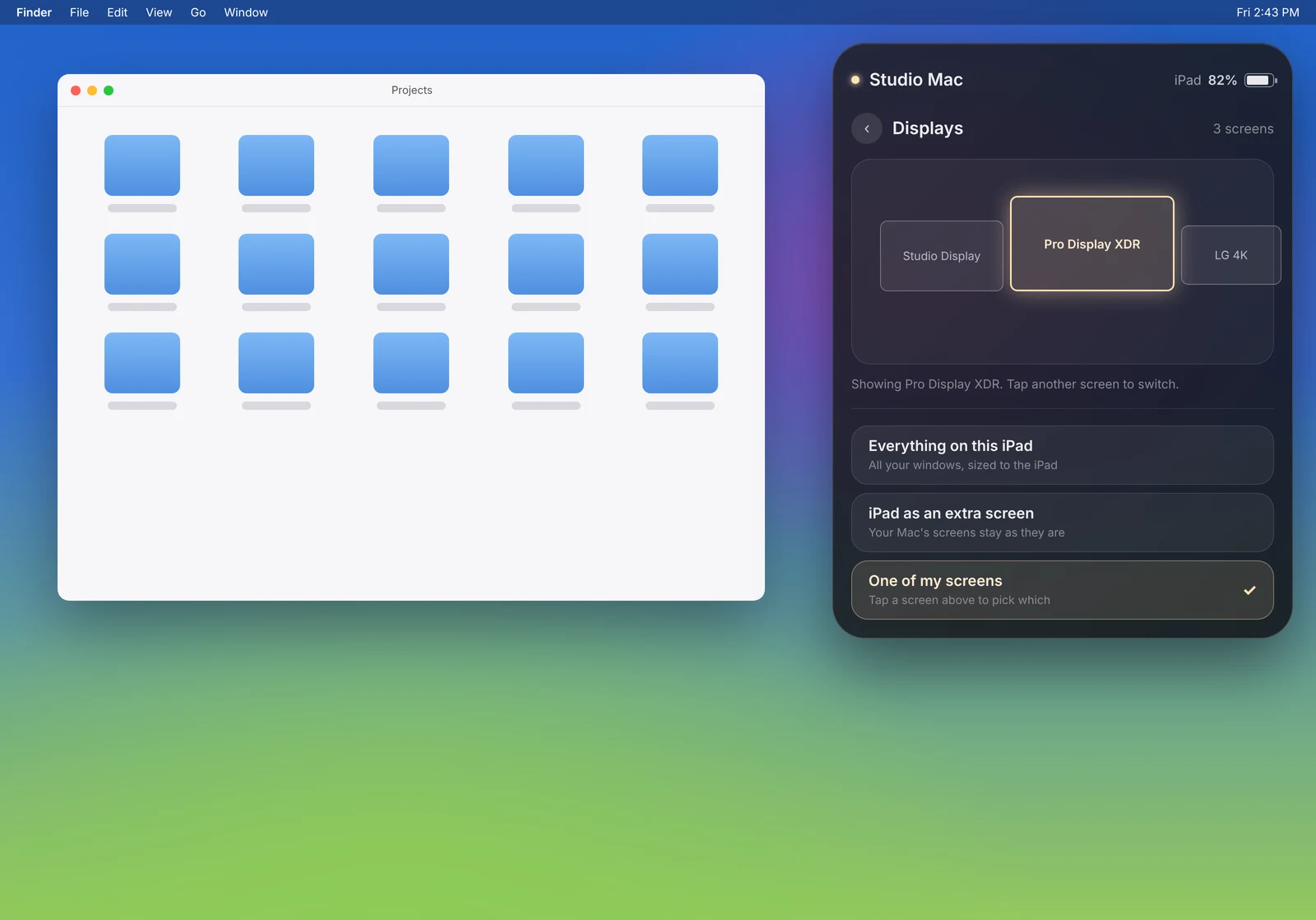
Second screen
Use your iPad as an extra screen for your Mac.
Fix a problem
What are you seeing?
Find the screen that matches yours.
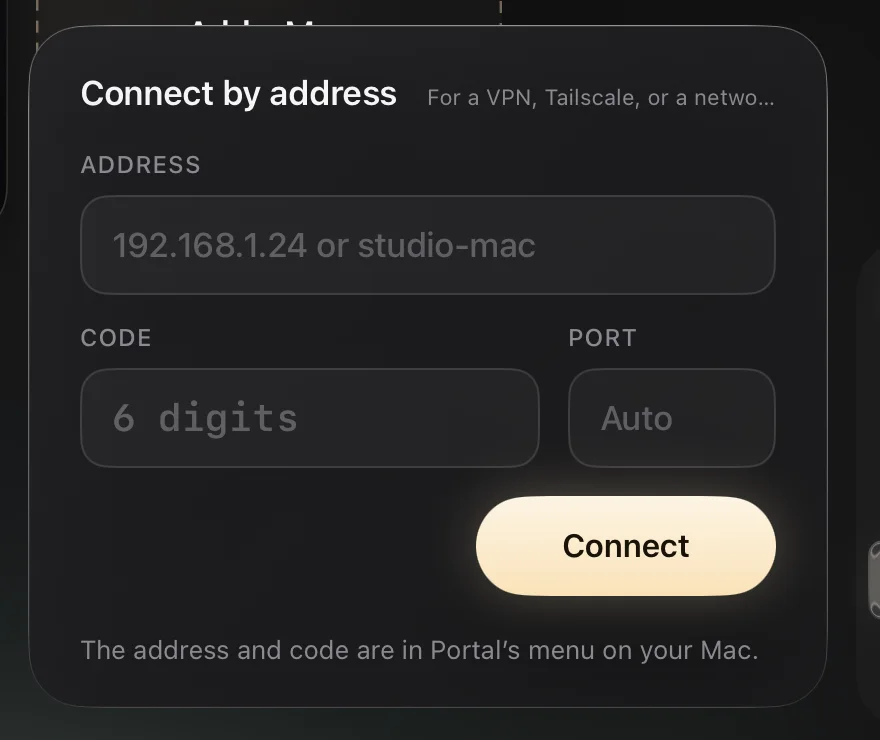
My Mac doesn't show up
Portal can't find your Mac on the network
- Check the arch is in your Mac's menu bar. If it isn't, open Portal for Mac.
- Put both on the same Wi-Fi. Guest and office networks often block devices from seeing each other; a home network or personal hotspot works.
- On the iPad or iPhone: Settings › Privacy & Security › Local Network › Portal on. Or tap Connect by address; the address and code are in Portal's menu on your Mac.
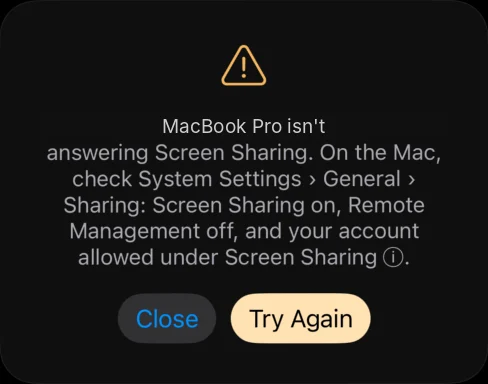
"isn't answering Screen Sharing"
Screen Sharing is off on that Mac
- On the Mac: System Settings › General › Sharing › Screen Sharing on.
- Turn Remote Management off, and allow your account under Screen Sharing ⓘ.
- Tap Try Again.
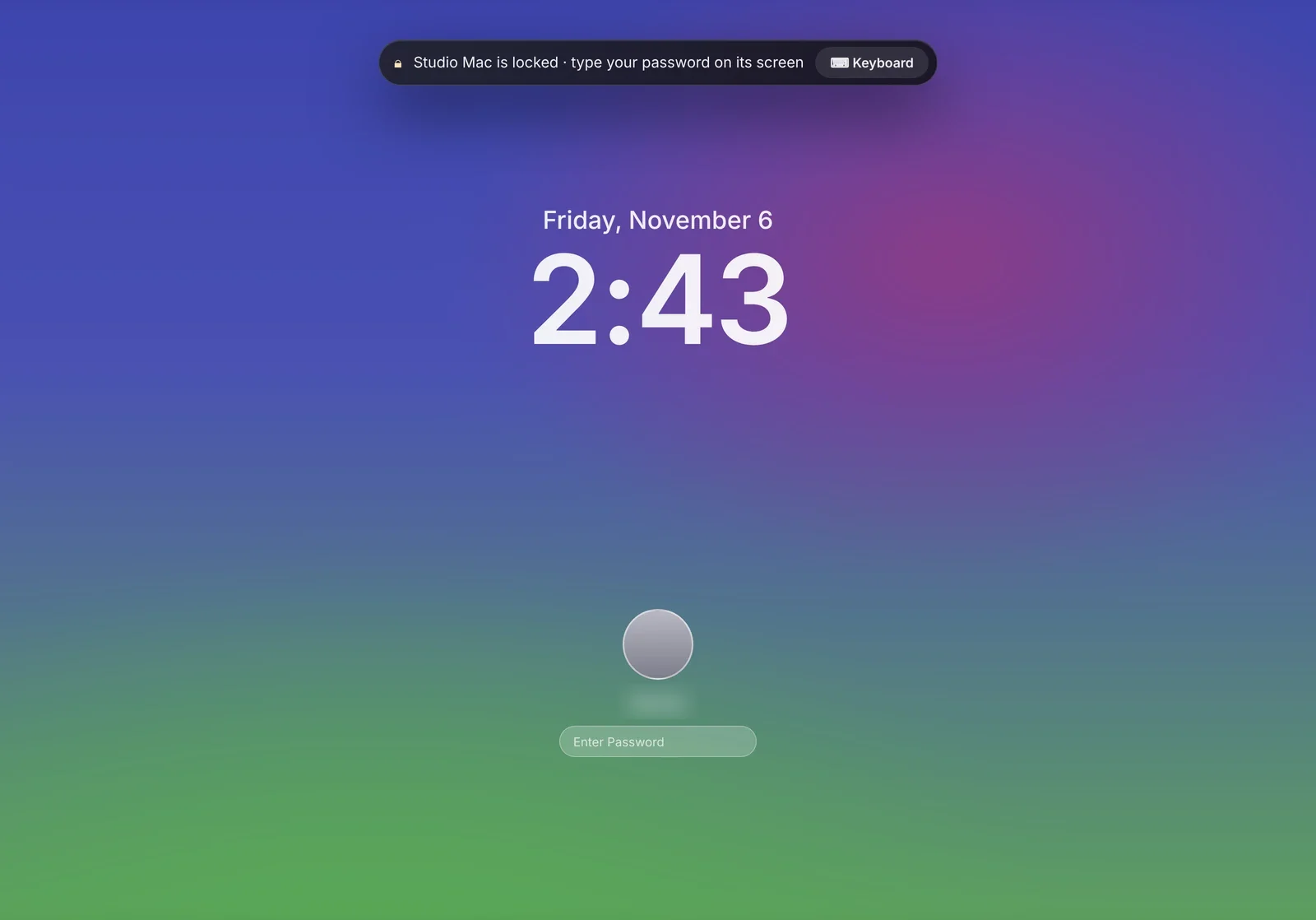
My Mac is locked
Unlock it from your iPad
- Type your Mac's password in the Unlock box at the top, or on the Mac itself.
- Turn on Remember with Face ID and next time a glance unlocks it. The password stays in your device's Keychain.
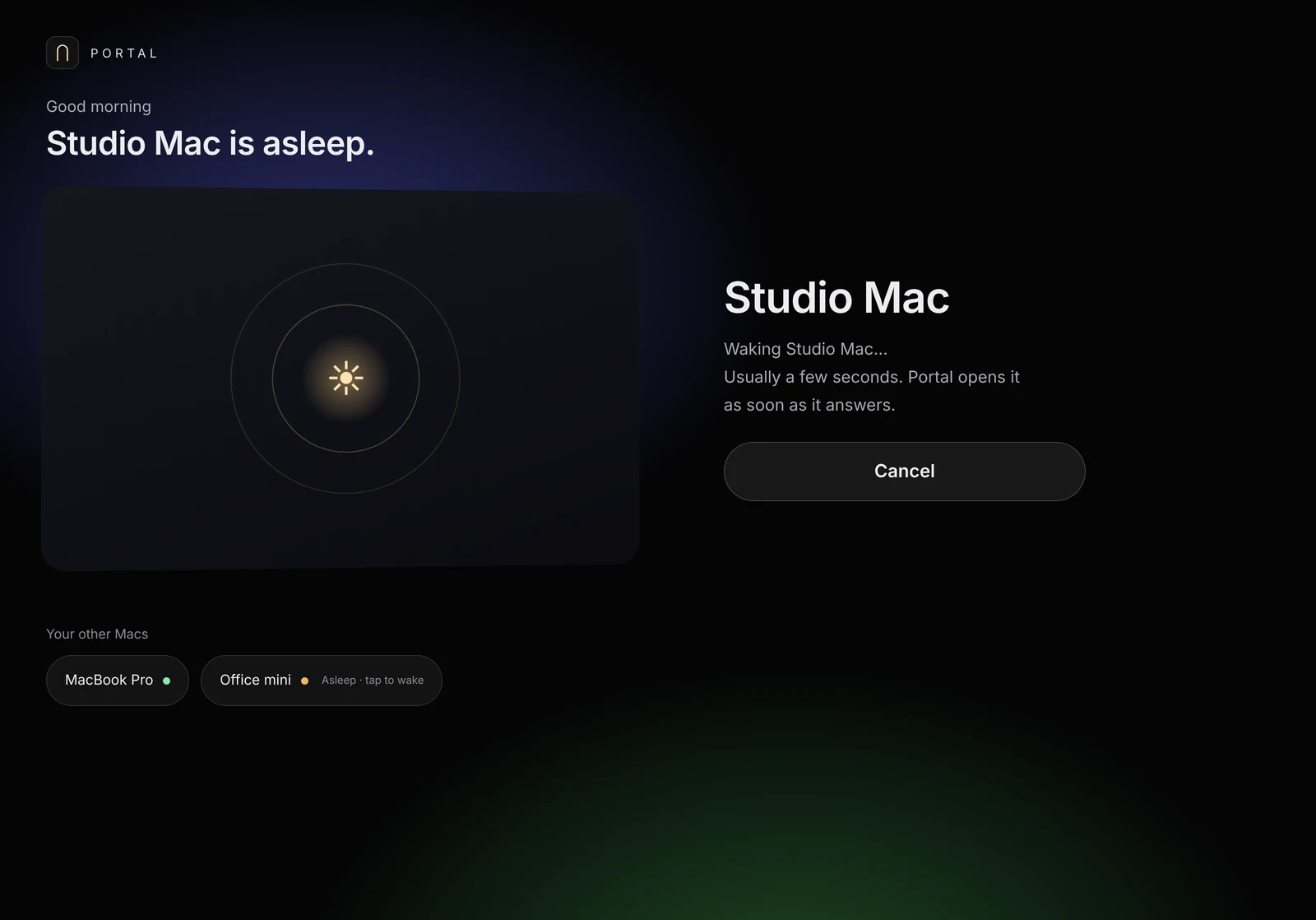
My MacBook sleeps with the lid closed
Keep it reachable while plugged in
- Make sure the fourth switch, Allow in the Background, is on.
- Tap the gear on the Mac's card › Connect › Stay reachable, lid closed.
- In Portal's menu on the Mac, turn on Open at Login so it's ready after a restart.
It's choppy or slow
Help your Wi-Fi keep up
- Open the Portal menu and check Smoothness, Response and Sharpness.
- Move closer to the router, or use a 5 GHz or 6 GHz network.
- If Extra smooth (120 Hz) is on in Settings, try turning it off.
Subscription
Plans, restore and cancel.
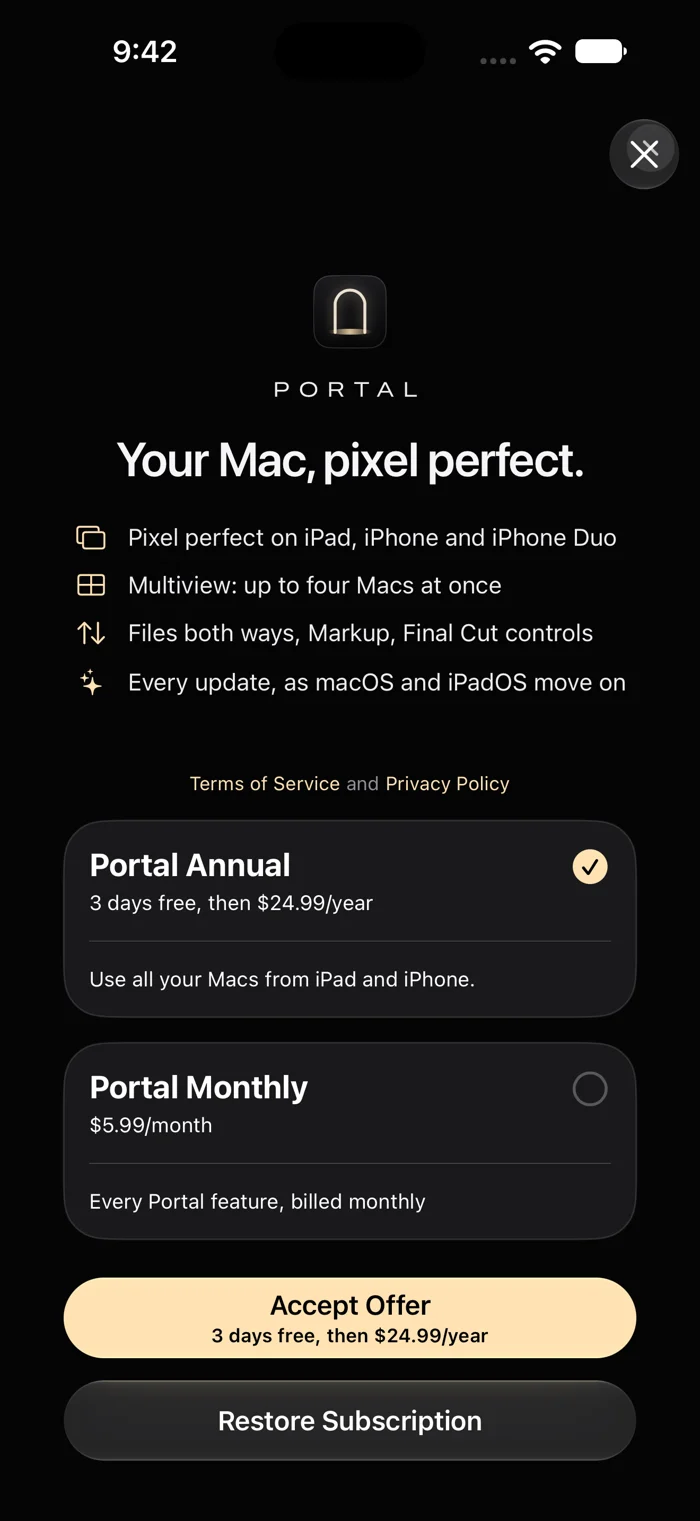
New iPhone or iPad? Open a Mac in Portal and tap Restore Subscription.
Cancel any time. On your iPhone or iPad: Settings › your name › Subscriptions › Portal. Cancel at least 24 hours before it renews.
Portal for Mac is free. One subscription covers your iPad, iPhone and iPhone Duo.
More questions
The details.
How do I install Portal for Mac?
Open the download, drag Portal to your Applications folder, and open it. The first time, macOS asks whether you're sure you want to open an app from the internet. Click Open. Portal is signed by 1eleven Studio and checked by Apple.
Why isn't Portal for Mac in the Mac App Store?
To work, Portal creates a screen sized for your device and lets it control the pointer and keyboard. Apps in the Mac App Store aren't allowed to do either. Every version we publish is signed by us and checked by Apple.
What are the four switches for?
Accessibility lets Portal move the pointer and type as you do from your iPad or iPhone. Screen & System Audio Recording lets Portal show your Mac live on your device; it saves nothing. Screen Sharing turns on macOS's own Screen Sharing, used at the login window or to sign in to another account. Allow in the Background (System Settings › General › Login Items & Extensions) keeps a closed MacBook reachable while it's plugged in, and encrypts Screen Sharing.
macOS asked me to "Quit & Reopen" Portal.
That's normal after allowing the screen permission. Click Quit & Reopen. Portal comes back where you were.
Connect by address says the code didn't match.
Enter the code shown right now in Portal's menu on your Mac. If you made a new code on the Mac, every device needs the new one.
What does "pixel-perfect" mean?
When you connect, your Mac switches to your device's exact resolution, so each Mac pixel lands on one screen pixel. In Settings you can choose larger text or more space instead, or show the Mac's own screen as it is.
Can people near my Mac see what I'm doing?
Turn on the privacy screen from the Portal menu or Settings. Your Mac's own display shows Portal's arch while you work, and stays covered when you turn or fold your device. You can also have Portal ignore the Mac's keyboard and trackpad, and lock the Mac when you leave.
How do I hide my Mac's picture on Portal's home screen?
Tap Customize under your Mac and choose Blurred for privacy. To hide window titles, turn off Show window titles at home in Settings.
How do I change how Portal's home looks?
Open Settings and choose a look: Classic, Studio Summary or Studio Detail. Studio shows each Mac live, with its battery, storage, connection and what's running, plus your recent work.
Why don't I see battery, storage or recent work for my Mac?
Those readings come from Portal for Mac, so make sure it's up to date (it updates itself; you can check in its menu). The Mac also needs to be awake, signed in and on the same network. A Mac that's asleep shows Asleep, and a tap wakes it.
What happens when I turn or fold my device?
Your Mac reshapes itself to the new screen in place, without reconnecting. Portal keeps a sharp picture up while the Mac catches up, and the privacy screen on your Mac stays on the whole time.
What about my privacy?
Portal connects your device directly to your Mac on your own network, encrypted. We don't collect anything. Read the Portal Privacy Policy.
Still stuck?
Tell us what happened.
A screenshot helps most. We use what you send only to answer it, and write back to your email. Prefer email? Write to admin@1eleven.studio.